Workflows
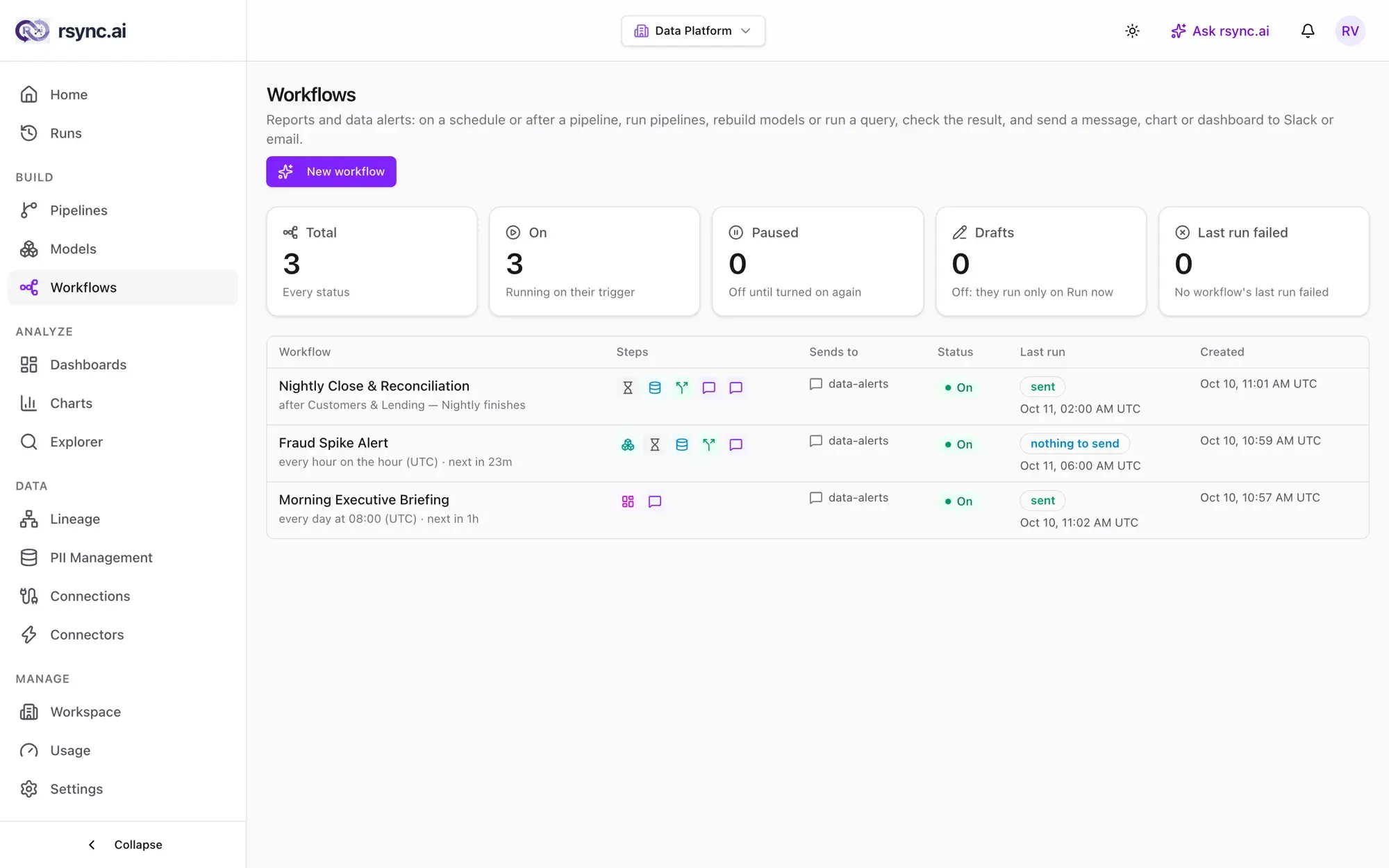
Reports and data alerts that run on a schedule or after a pipeline: run pipelines and models, wait, query, check the result and send to Slack or email. A report without a query can send a chart or dashboard.
What a workflow is
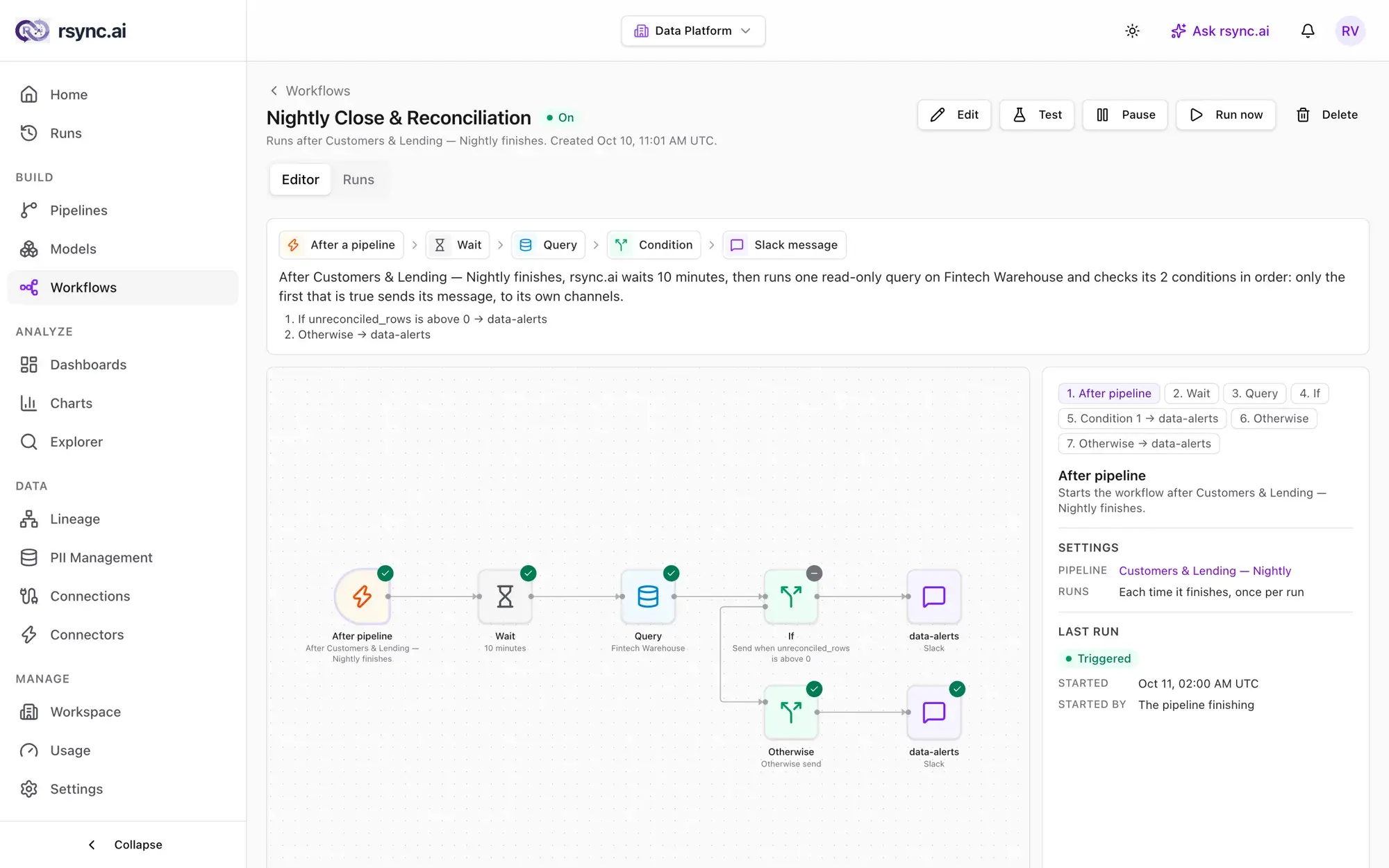
A workflow is a trigger followed by a graph of typed steps. Each step is a form, never code. rsync.ai runs the saved steps in order and does not call a model while it runs.
- A workflow never moves data. Moving data is a pipeline. A workflow starts pipelines and models, waits for them, and reports on what they produced.
- Plain SQL and templates, no code. There is no Python, JavaScript or shell step. Anything smarter than a condition is written into the SQL.
- Your own channels. Each condition sends to the Slack channels or email lists you name.
Triggers
| Trigger | Runs |
|---|---|
| Schedule | On a five-field cron expression in an IANA timezone, such as “every Monday at 08:00”. |
| After a pipeline | When a chosen pipeline's run completes successfully, or for a CDC pipeline after each sync window. A failed run doesn't start it. |
| Manual | Only when you select Run now. |
Steps
| Step | What it does |
|---|---|
query | One read-only statement on a SQL connection. Returns at most 500 rows, and personal columns are masked. |
condition | Tests the result: always, rows exist, no rows, or a value in the first row above, at least, below, at most, equal to or not equal to a number. The first condition that is true sends, to its own channels. The last may be “otherwise”. |
send | Posts a message to Slack or email, using a template. |
run_pipeline | Starts a batch pipeline and waits for it to finish. A CDC or polling pipeline keeps running until stopped, so it can't be a step. |
refresh_model | Rebuilds a model and waits for the run. A failed check marks the step as warned or failed. |
wait | Pauses for 1 minute up to 24 hours. |
chart | Draws a saved chart as the run's user and puts it in the message sent after it. Email gets a plotted chart as a picture and Slack gets its numbers as text. Only in a workflow with no query. |
dashboard | Draws every tile of a saved dashboard. In email you get the tiles and the board as a PDF; in Slack, the scorecard numbers and a link. Only in a workflow with no query. |
By default a step runs once the steps before it have passed (succeeded or warned); a step can instead run once they finish, or only if one failed. The run page shows each step's outcome with a link to its pipeline or model run.
Messages and channels
A message has a subject and a body. It can use only {{slot}} placeholders: a column from the first row of the query, or one of workflow_name, row_count, value, table, run_time and link. Without a query, only workflow_name, run_time and link are available. {{value}} needs a value condition, and run_time is in UTC. There are no loops or conditions inside a template.
Channels are set up once, in Workspace settings → Delivery channels. A Slack channel is an incoming webhook, stored encrypted and never shown again. An email channel is a list of addresses. Each condition sends to 1–5 channels, and an optional quiet period of 0–7 days stops the same alert from repeating.
Create one with Ask rsync.ai
Select New workflow, or open Ask rsync.ai, and describe what you want: “every morning at 8, post yesterday's failed payments to #data-alerts, and flag it if there are more than 5,000.” It drafts the query, the conditions and the messages.
- Review the draft. The card under the answer draws the steps on a small canvas. Nothing is sent and nothing is scheduled yet.
- Select Test. It runs the query and shows the rows and every rendered message. Nothing is sent.
- Select Turn on to schedule it; you become the user it runs as. Run now runs it once, as you, and really sends, even on a draft.
How runs work
- Each run is a Temporal workflow, so a restart in the middle of a run doesn't lose it.
- Runs store outcomes, not rows: the row count, which condition was true, and the status of each delivery. Rows go to the channels and nowhere else.
- Every run re-checks permissions. It confirms the run-as user is still an admin or owner, and that the connection and the SQL are still allowed. If a scheduled or after-pipeline run is refused, the workflow pauses and says why. Run now checks the person who clicked it.
- No model is called at run time. The AI drafts the workflow; the saved steps run as written.
Who can do what
| Owner, admin | Member, viewer | |
|---|---|---|
| See workflows and their runs | Yes | Yes |
| Draft, test, turn on, run now, edit, delete | Yes | — |
| Add or test delivery channels | Yes | — |
What workflows don't do yet
Approval steps, outbound HTTP calls, steps that act in other apps, an AI step, CSV attachments and Google Sheets delivery aren't available. If you need one of them, tell us.
Ready to try it?
Start building on rsync.ai Cloud today — or self-host on your own infrastructure.