Explorer
A SQL editor on top of your connections. Write a query, read the result, then save it, chart it or turn it into a model. Writes need the right role, and every write is audited.
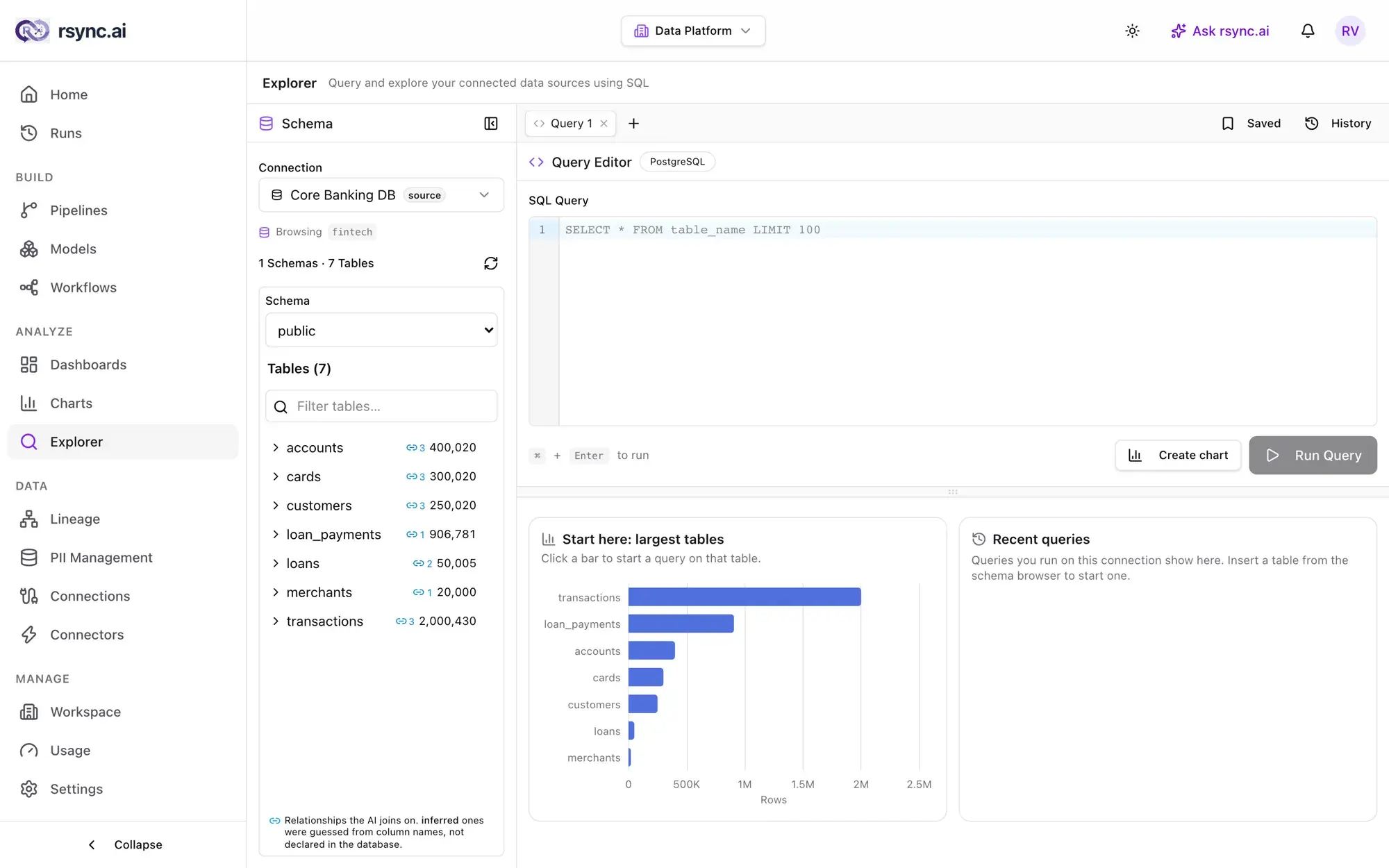
Run SQL
Pick a connection, write SQL and press ⌘Enter (Ctrl+Enteron Windows and Linux). If you've selected text, only the selection runs. Otherwise the statement under the cursor runs.
- One statement at a time. A second statement chained on with a semicolon is refused.
- Previews are capped at 500 rows, and columns that hold personal data are masked in the preview, by column name.
- Up to 10 query tabs stay open at once, so you can keep a few queries going.
- Historylists the queries you've run, so you can reopen one.
What your role lets you run
The statement decides which role it needs, and the check happens on the server, not in the editor.
| The SQL | Role it needs |
|---|---|
SELECT, WITH | Anyone, viewers included |
INSERT, UPDATE, DELETE, MERGE, CREATE, ALTER | Admin |
DROP, TRUNCATE | Owner, with a typed confirmation |
GRANT, REVOKE, CALL, EXEC, SET | Never |
The schema browser
The panel on the left lists the tables and columns of the connection you're working on.
- Relationships are shown. A foreign key the database declares appears as a relationship. One rsync.ai guessed from column names and types carries an inferred tag, so you can check it before you rely on the join.
- On MongoDB you browse documents instead of tables, and run
findandaggregate.
Save, chart and schedule
A query you want again goes into Saved. From there it can grow into the rest of the product.
- Save a query (members and above) to keep the SQL under a name. Its creator and any admin can edit it later.
- Make it a model. Give a saved query a materialization and a trigger and it rebuilds a table for you. Scheduling is an admin action. See Models.
- Create chart turns the query into a chart in the chart editor. See Charts, then place it on a dashboard.
Export and share
- Export a result as CSV, TSV or JSON, up to 10,000 rows.
- Share to Slackposts a result to a channel through a Slack incoming webhook URL you paste in. The URL isn't saved. By default the message carries the SQL, the row count and the column names; attaching the values themselves is a separate tick box.
From a question to a query
The Explorer doesn't turn a sentence into SQL. Ask rsync.ai does. When it writes a query for you it shows the SQL marked Not run, with an Open in Explorer button. Nothing executes until you read the SQL and run it here, under your own role.
Data protection
- Personal columns are masked in every preview, and your role decides which statements run.
- Ask rsync.ai sees column names and types, never the rows you're looking at, unless a platform admin and the workspace owner have both switched on sample rows. See what the model sees.
- Personal columns are detected and managed under PII Management. See the workspace tour.
Ready to try it?
Start building on rsync.ai Cloud today — or self-host on your own infrastructure.